A few minutes of setup for you. A 6-letter code for everyone else. Then everybody talks in their own language.
The organizer is the person who starts the family, invites everyone and looks after the plan and privacy settings. Here's the whole journey, in order.
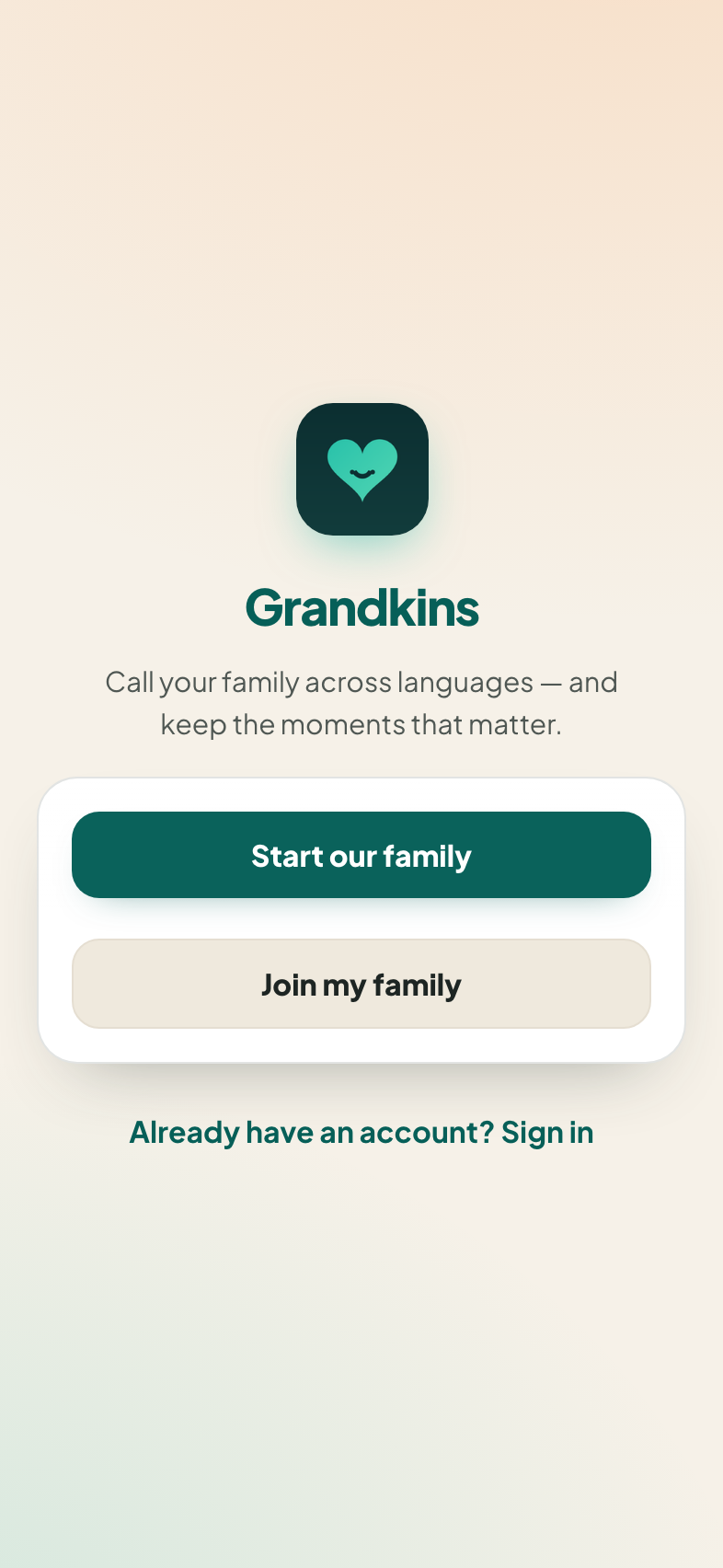
Install Grandkins from the App Store or Google Play, or open app.grandkins.com/app in a browser. On the first screen, tap Start our family.
Give your family a name (like "The Riveras"), your name, and the languages you speak. Then enter your email: we send you a 6-digit code, you type it in, and you're done. No password needed. Your free trial starts straight away.
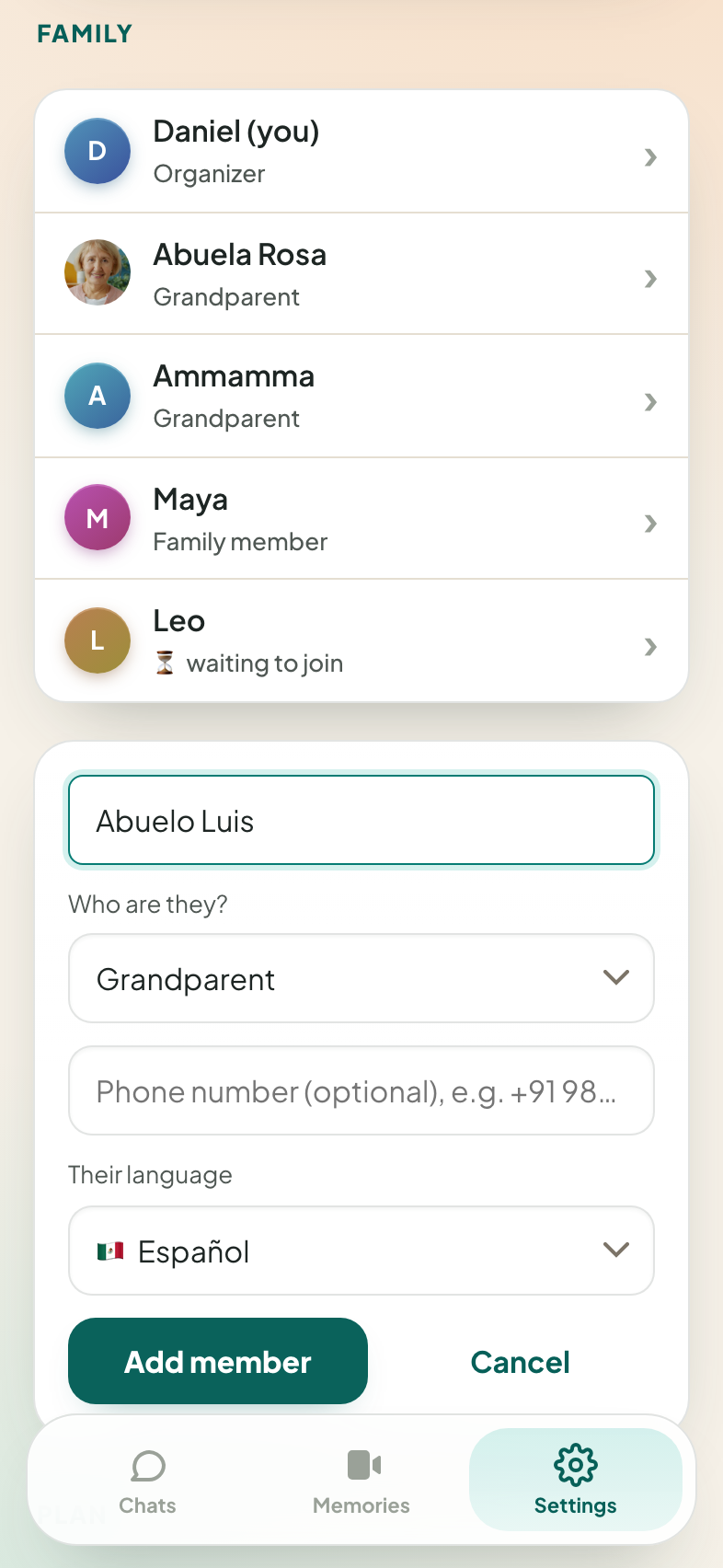
Go to Settings and add a family member. For each person:
A family can have up to 15 people.
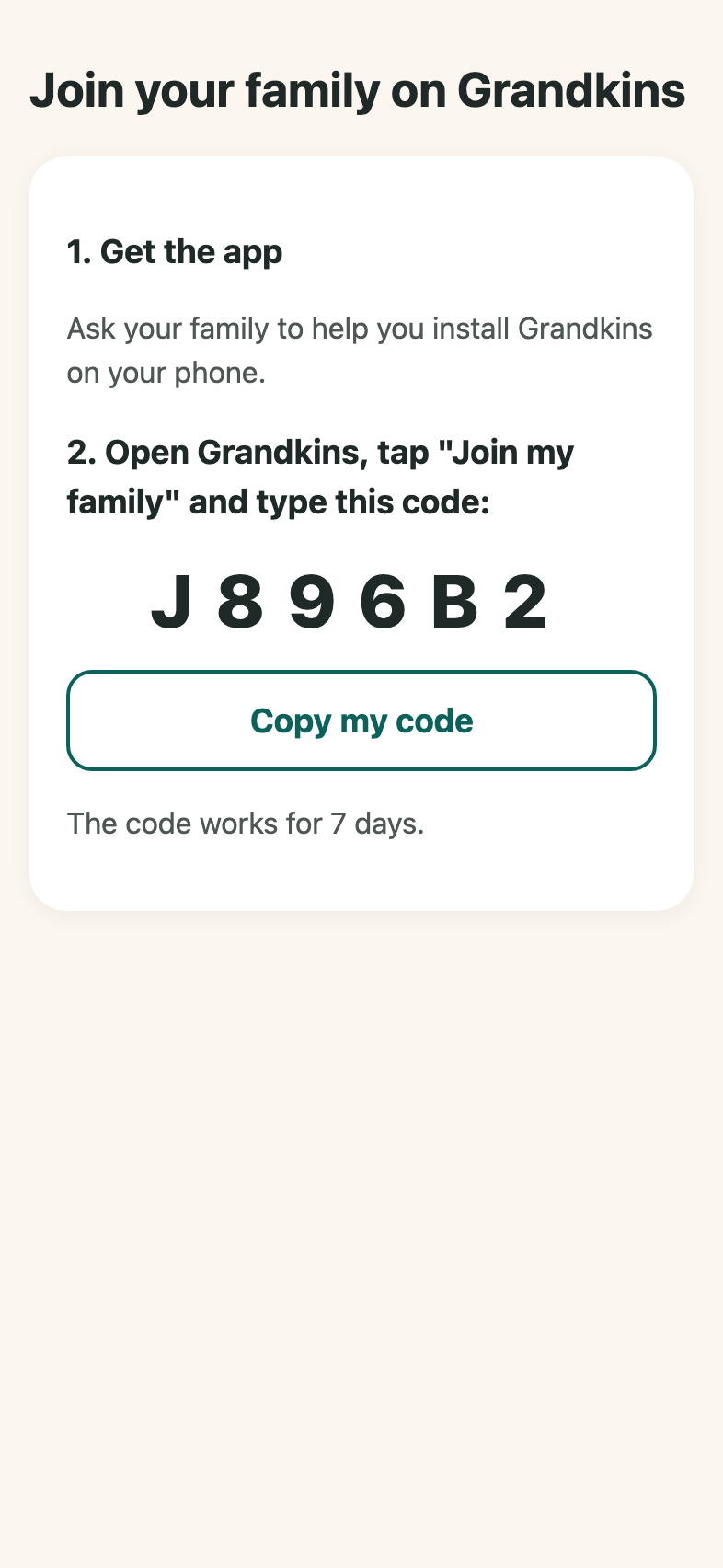
Tap a person, then Invite. Send the message on WhatsApp, as a text, or any other way. It says, in plain words: get the app from this link, tap "Join my family", and type this 6-letter code.
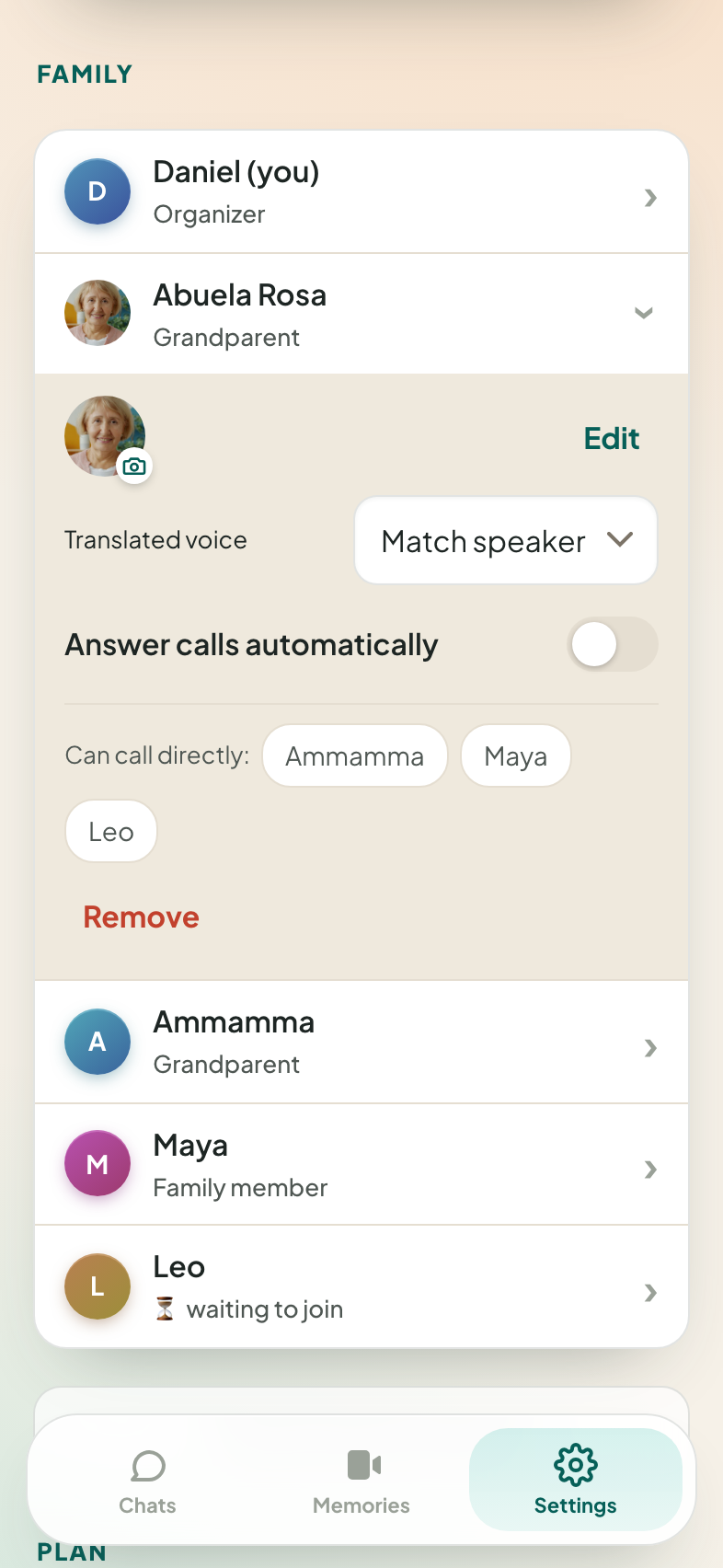
Tap a person in Settings to choose who they can call directly. Connect Ammamma to the grandkids and they can call each other without going through you. You stay the organizer, not the switchboard.
While you're there:
📹 Video call: tap Call on anyone, or call several people at once. Speak naturally. They hear a translated voice in their language with captions, and you hear them in yours.
🎙️ Voice message: tap the microphone, talk, and tap again to send. It arrives in their language as text and as a spoken translation.
📹 Video message: record a short video. They see it with captions in their language and can hear it spoken in their language.
💬 Text and photos: type in your language; they read it in theirs.
👨👩👧👦 Family room: one chat for the whole family, each person reading it in their own language. It's at the top of the Chats screen, and you can send a video to everyone from there.
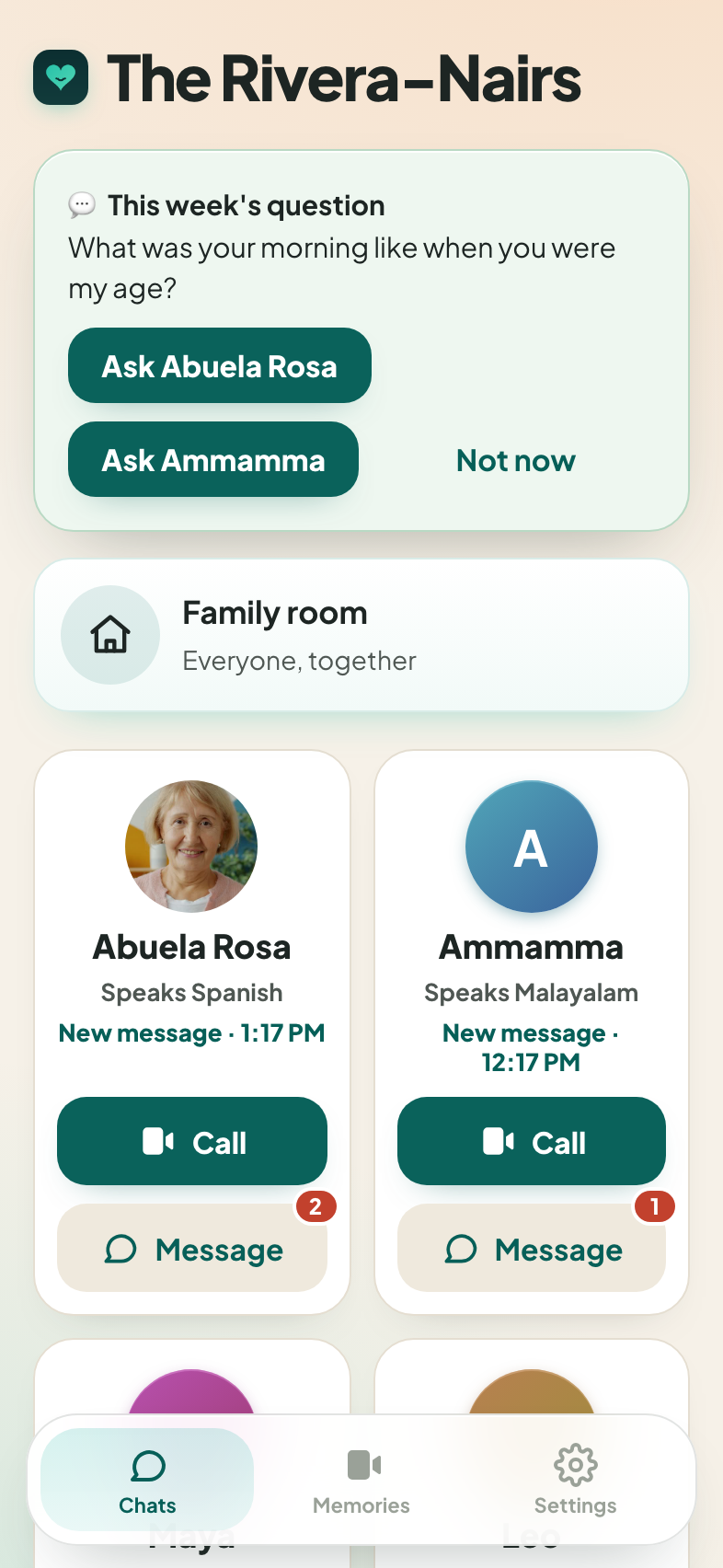
Everyone in the family uses the same app. Get it from the App Store on iPhone or from Google Play on Android. On a computer, or if you'd rather not install anything, use it in a browser at app.grandkins.com/app. Allow notifications when the app asks, so calls ring even when the app is closed.
Everyone gets the same app with the same screens. The buttons are in simple English, and everything your family says to you arrives in your own language.
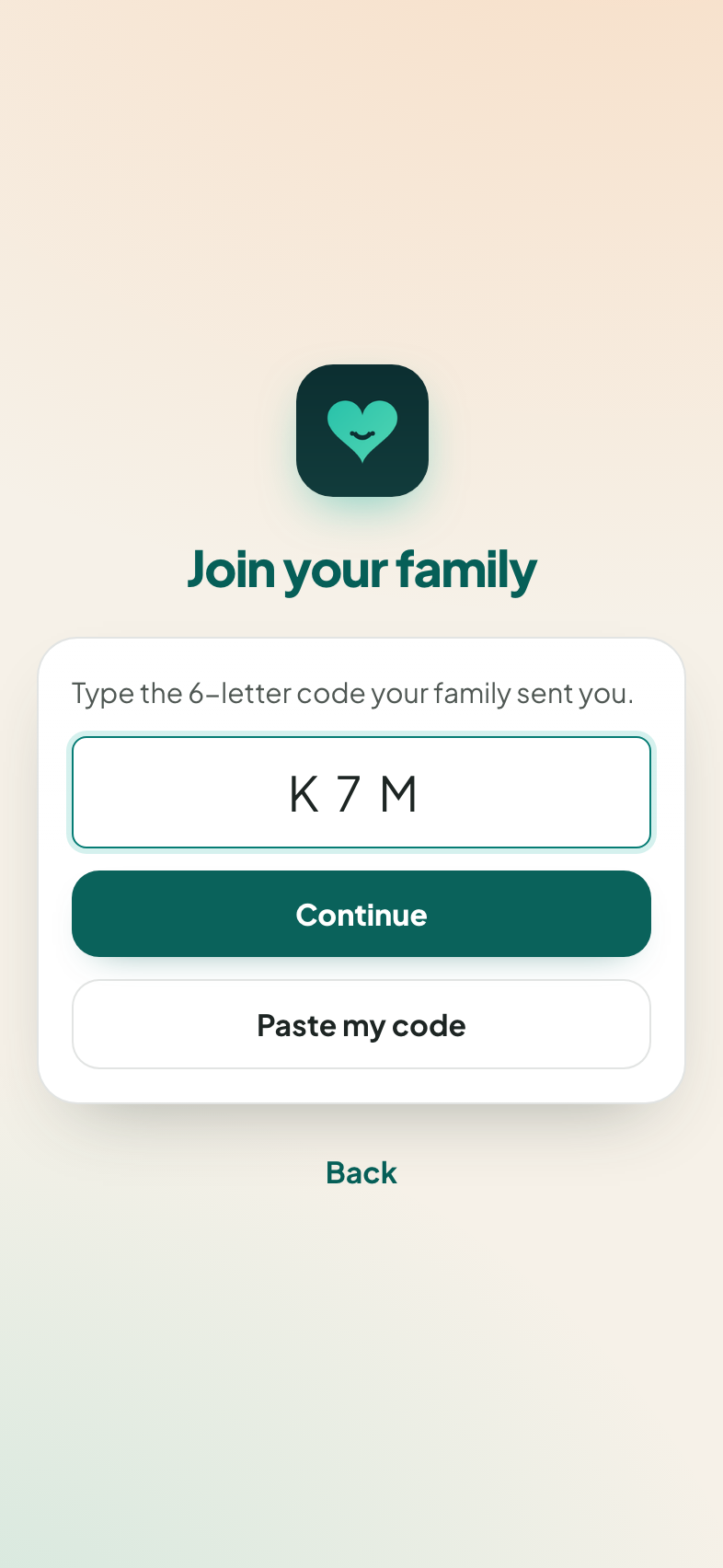
Your family sends you a message with a link and a 6-letter code. Tap the link to get Grandkins, open it, and tap Join my family. Type the code (or tap Paste my code).
Then tap the languages you speak. That's how your family will hear you, and what their calls and messages are translated into for you. No email, no password.
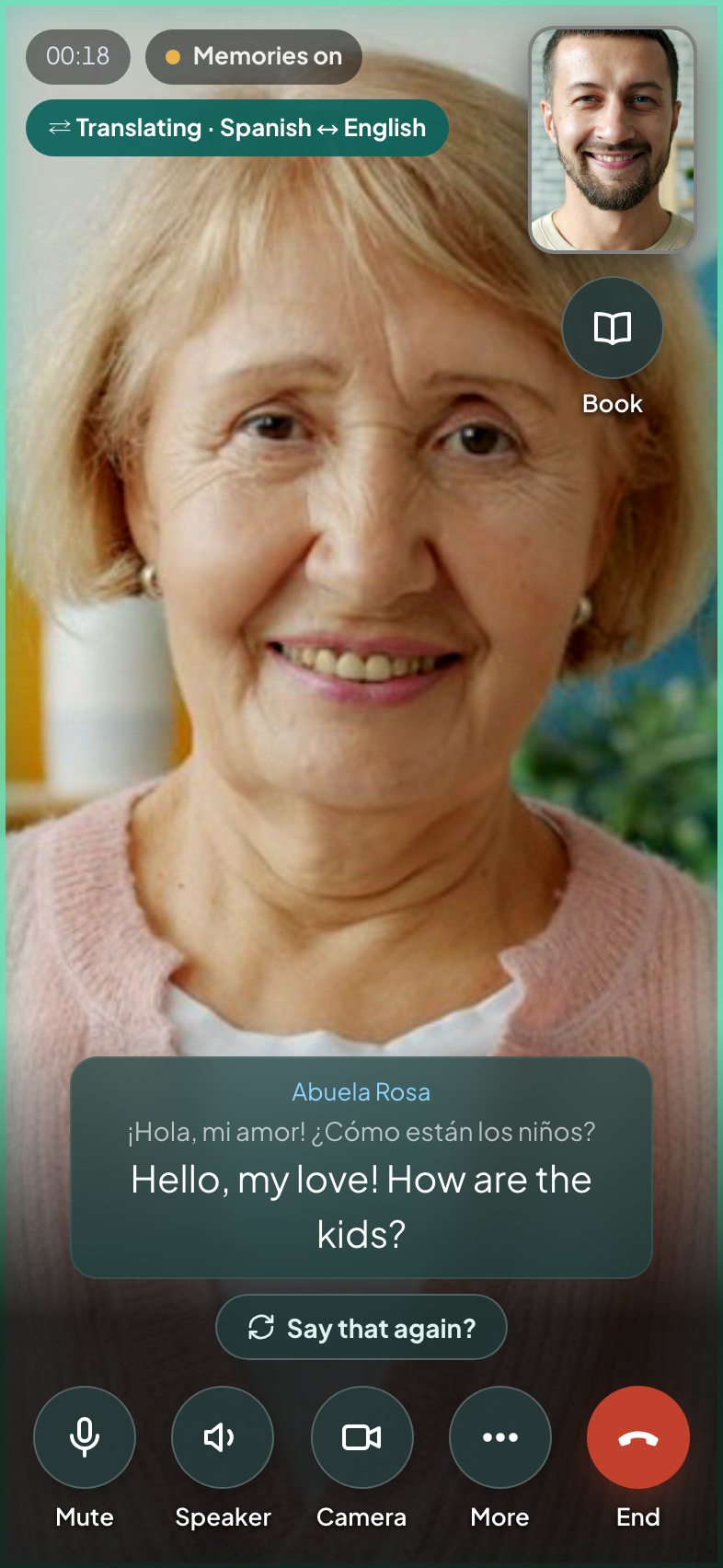
When someone calls, the phone rings with their name, and it can say who's calling out loud (Say who's calling in Settings). Tap Answer. To call someone, tap their name, then Call.
On the call, talk the way you always do. You'll hear the others in your language, with captions on screen. A green outline around someone means they're talking; a pulsing amber outline means their translation is on its way.
Didn't catch something? Tap Say that again? and they'll be asked to repeat it.
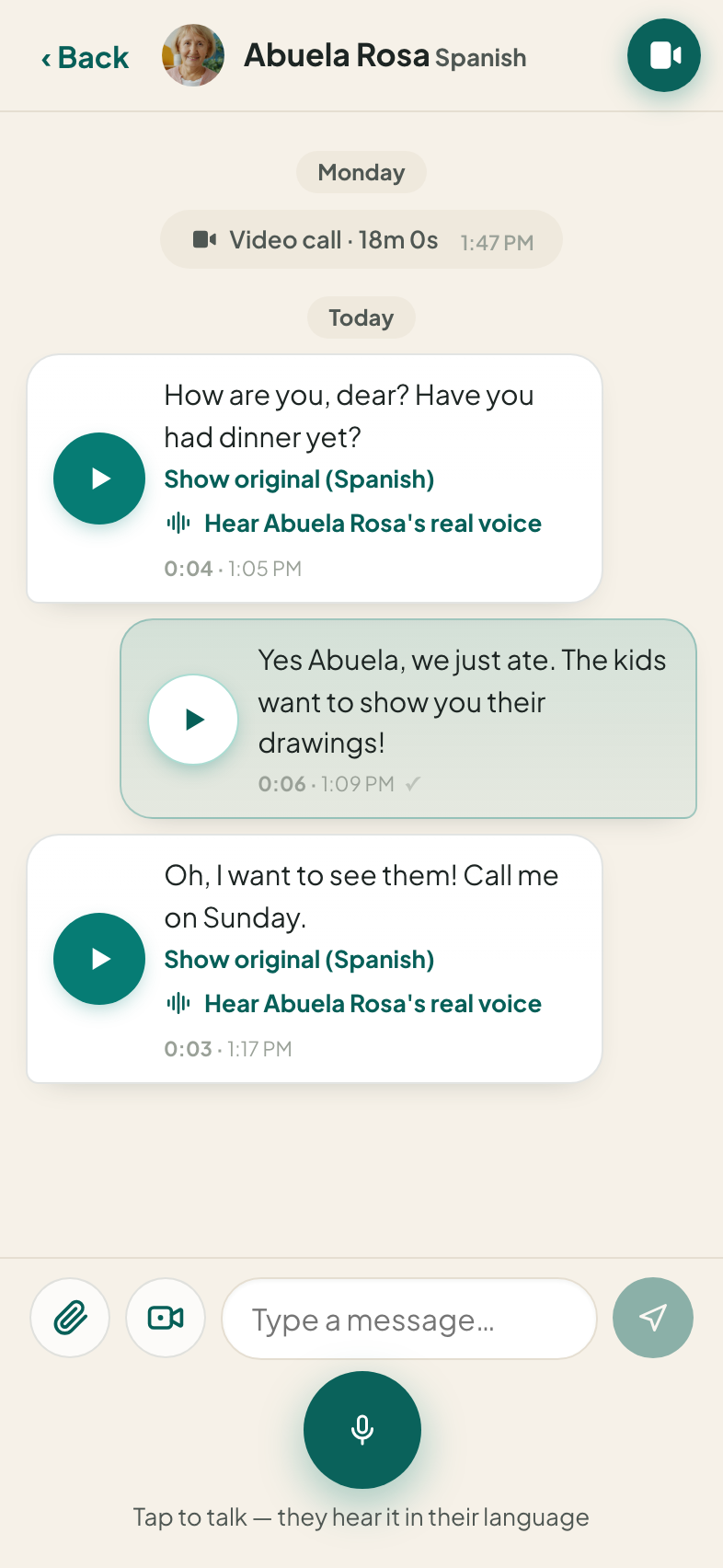
In anyone's chat, tap the microphone, talk, and tap again to send. Your family gets your words in their language, written and spoken. You can also type, send a photo (the paperclip), or record a short video message (the camera button).
Messages from the family arrive already in your language. Want to hear the person themselves? Tap Hear their real voice.
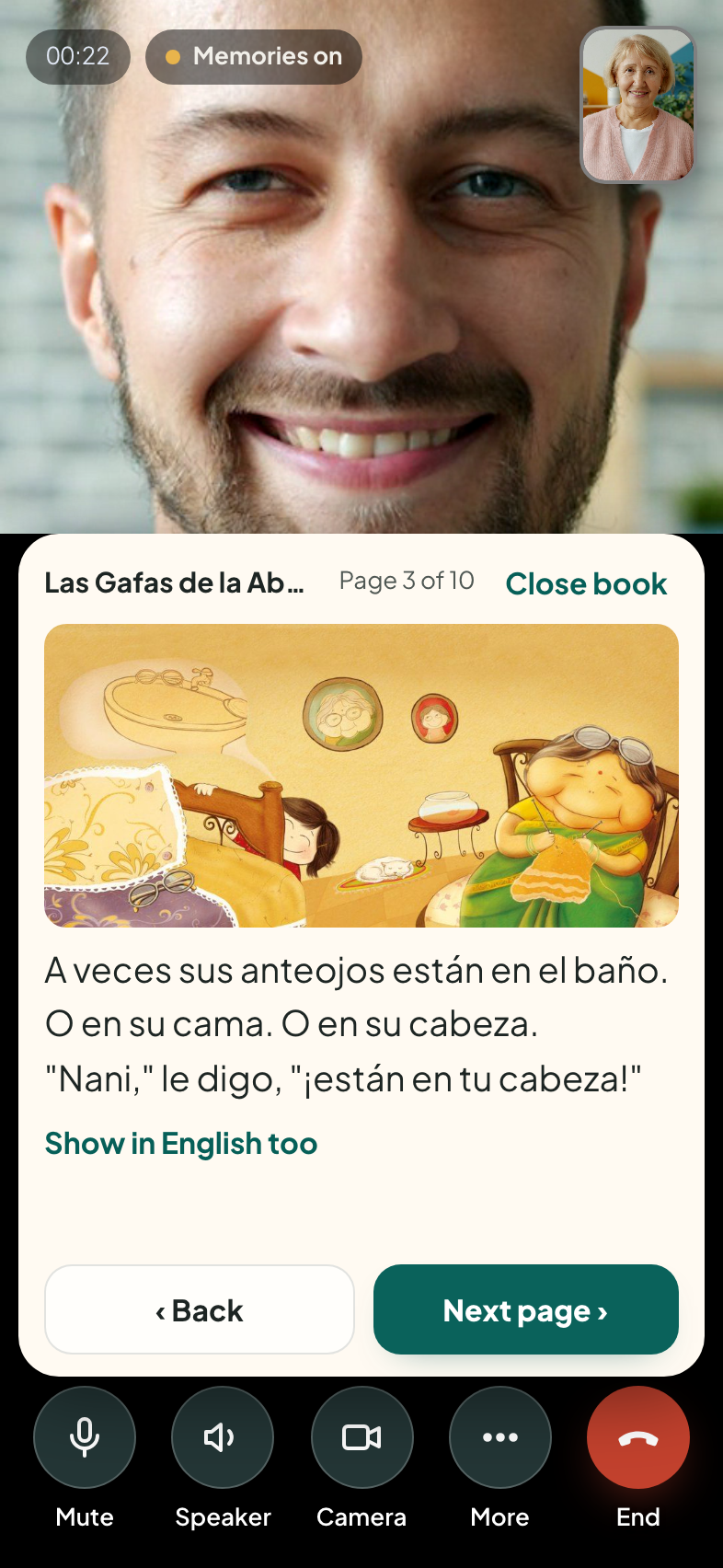
On a video call, tap Book, the round button under your own picture (it's also under More Read a book together). Pick a picture book: there are 62, for ages 2 to 9, and the buttons at the top narrow them by age. You both see the same page, and when one of you turns the page, it turns for the other too. Where the book has been published in your language, you see its words in your language.
Close the book whenever you like: next time, the shelf shows Continue and opens it where you stopped.
The books come from StoryWeaver by Pratham Books, shared under a Creative Commons licence.
Settings has an Ask for help with the app button. Tap it and your family's organizer gets a message that you'd like a hand. Nobody else sees it.
English, മലയാളം, தமிழ், తెలుగు, ಕನ್ನಡ, हिन्दी, मराठी, ગુજરાતી, বাংলা, ਪੰਜਾਬੀ, اردو, Español, Português, Français, Deutsch, Italiano, Polski, Русский, Українська, Ελληνικά, Türkçe, العربية, فارسی, עברית, 中文, 한국어, 日本語, Tiếng Việt, Filipino, ไทย, Bahasa Indonesia, Bahasa Melayu, မြန်မာ, ខ្មែរ, नेपाली, Kiswahili. Pick the ones you speak when you join, and change them any time in Settings.
He doesn't need the app. During a call, tap Invite a guest by link and send him the link on WhatsApp or by text. He opens it in his phone's browser, picks his language, and joins that one call, translated like everyone else.
Grandkins handles real family chaos, but a few habits make every call noticeably better. The app will also gently remind you on the call itself.
The translator follows one voice. When everyone greets at once (we know, it's a family call), the translations pile on top of each other. Short pauses between speakers keep everything clear.
A TV or busy street next to the phone competes with the speaker's voice. It doesn't need to be silent. Just don't make the translator fight the cricket commentary.
The spoken translation follows a couple of seconds behind, like a human interpreter. Wait for the amber outline to finish before replying, and the rhythm becomes natural within one call.
Video adapts to slow connections automatically, but a decent Wi-Fi signal keeps faces sharp and voices clear on both ends.
Five steps for you, one code for each of them. Every family starts with a free trial: 14 days or 60 translated minutes.
Start your family free Grandkins